
- Regular price
- $2,870.00 USD
- Regular price
-
- Sale price
- $2,870.00 USD
- Unit price
- per
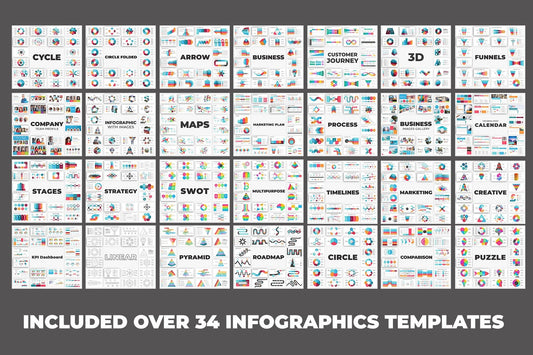
![Business Infographic Presentation - PowerPoint template PowerPoint Template-5,600+ slides [28 template]](http://slidesharez.com/cdn/shop/files/01_BusinessInfographicPowerpointPresentation_MainImage_533x.jpg?v=1773725816)
![Business Infographic Presentation - PowerPoint template PowerPoint Template-5,600+ slides [28 template]](http://slidesharez.com/cdn/shop/files/06_PresentationalImages02_533x.jpg?v=1773725816)
- Regular price
- $4,990.00 USD
- Regular price
-
- Sale price
- $4,990.00 USD
- Unit price
- per

- Regular price
- $12.00 USD
- Regular price
-
- Sale price
- $12.00 USD
- Unit price
- per
- Regular price
- $2,870.00 USD
- Regular price
-
- Sale price
- $2,870.00 USD
- Unit price
- per
- Regular price
- $4,990.00 USD
- Regular price
-
- Sale price
- $4,990.00 USD
- Unit price
- per
- Regular price
- $12.00 USD
- Regular price
-
- Sale price
- $12.00 USD
- Unit price
- per

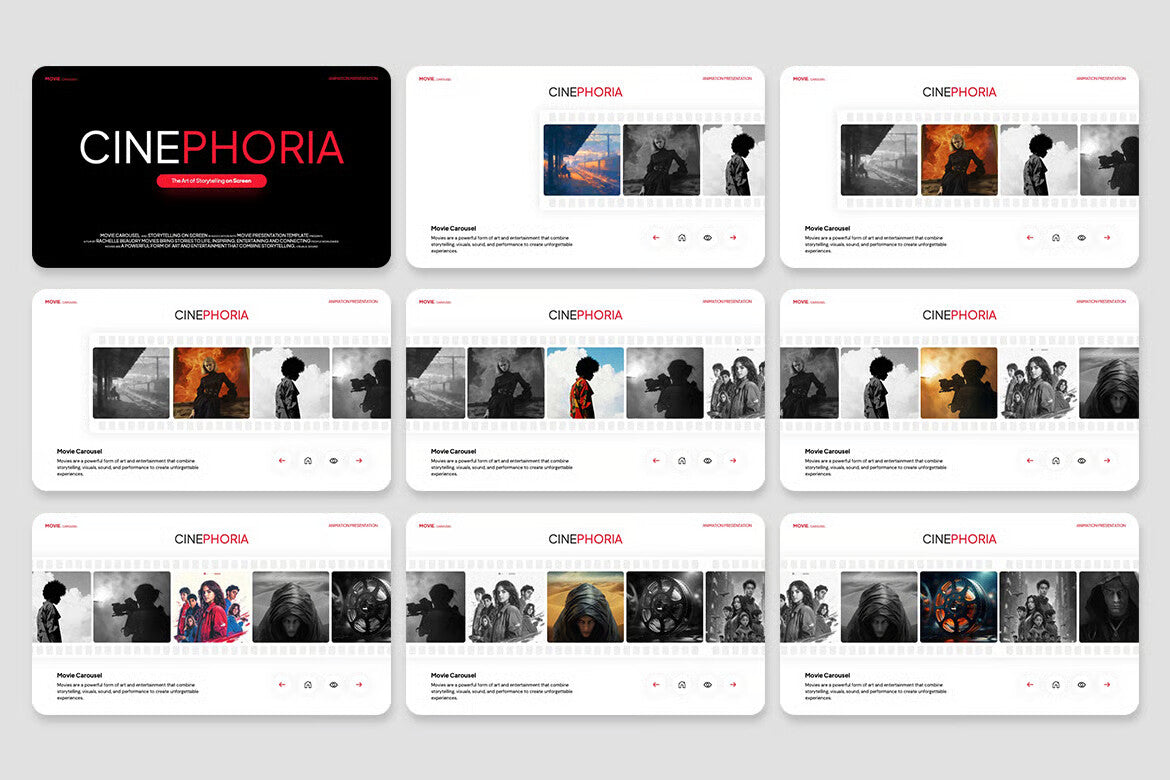


Modern Moving Carousel Animation Effect Powerpoint
- Regular price
- $12.00 USD
- Regular price
-
- Sale price
- $12.00 USD
- Unit price
- per
Vendor : Fast Track Templates
Couldn't load pickup availability
PowerPoint Help Guide
Fonts and Icons Used in This Template
Heading Font : Plus Jakarta Sans
https://fonts.google.com/specimen/Plus+Jakarta+Sans
Body Font : DM Sans
https://fonts.google.com/specimen/DM+Sans
icon
Default Powerpoint
**How to Use This Template**
Customizing this template is simple. Below are some key techniques
to help you edit images, colors, graphics, infographics, and shapes
with ease.
1. Editing the Background Layout
* Go to View > Slide Master.
* Select the top slide (Master Slide).
* Any edits made here will automatically update the background and
layout across all slides.
* You can also edit individual layouts below the master slide for
more specific customization.
2. Replacing Images & Working with Placeholders
* Drag and drop your image directly into the picture placeholder.
* If the image doesn’t appear correctly, right-click the image >
Send to Back, since some slides use transparent overlays.
* To crop an image:
* Double-click the image.
* Select Crop from the toolbar.
* Drag the black crop handles horizontally or vertically to adjust
the size and framing.
3. Changing Colors
* Go to Design > Colors.
* Choose from the available color palettes or create a custom theme
color.
* Shapes, graphics, and infographics will adapt automatically if
they are linked to theme colors.
4. Editing Shapes, Graphics, and Infographics
* Select any shape, chart, or infographic element you want to
customize.
* Right-click and choose Format Shape (for shapes) or Format Picture
(for images).
* You can adjust:
* Fill color and gradients
* Line style (thickness, color, dash)
* Shadow, glow, or reflection effects
5. Adjusting Shadows and Effects
* Some shapes and images in this template use shadow effects.
* To edit:
* Right-click the object and select Format Shape (or Format
Picture).
* Go to the Effects tab to adjust shadow position, transparency,
blur, or angle.
6. Modifying Slide Layouts
* To change the overall structure of your slides:
* Go to View > Slide Master.
* Edit the first large master slide or modify any of the
individual layouts underneath.
* This ensures your design stays consistent across the entire
presentation.
**Tips for Best Results**
* Use high-quality images for a professional look.
* Keep a consistent color palette for branding.
* Avoid overcrowding slides with too many elements.
* Save your work frequently.
Thank You for Using This Template
